
Now that we have our trigger in Power Automate we can use this email to look up our customer contacts in SyncroMSP and get the IDs we need to raise a ticket (namely the Contact ID and the Customer ID).
For this, you’ll need to get an API token for SyncroMSP and grant it the needed permissions. You can create one at https://yourcompany.syncromsp.com/api_tokens and clicking on New Token.

For what we’re doing, your token will at least need these permissions:
- Customers – List/Search
- Customers – View Detail
- Tickets – List/Search
- Tickets – View Details
- Tickets – Create
- Tickets – Edit
- Ticket Comments – New
But this is purely the basic flow – if you want your flow to do certain things like create a new contact if the email address doesn’t exist, add worksheet hours, merge tickets, you will obviously need to add these permissions.
Once you have the API token, go back to your Power Automate flow.
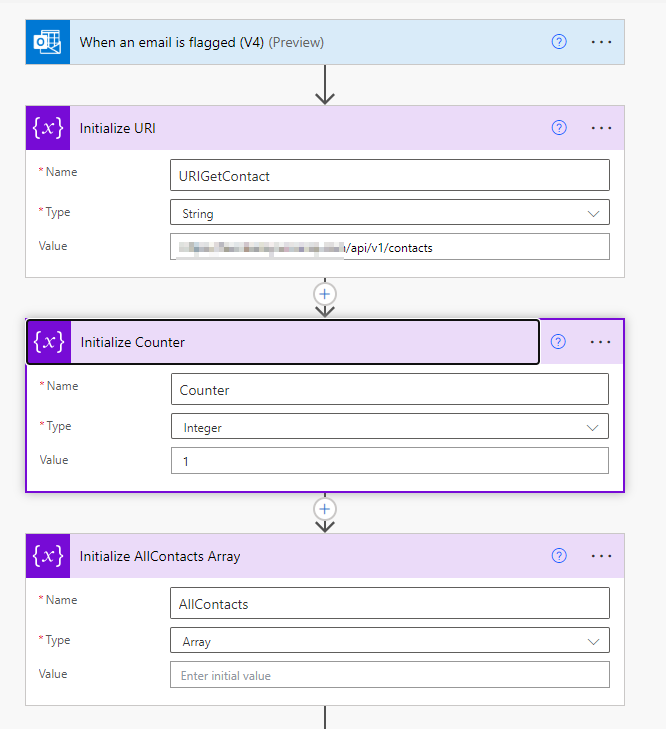
The next three steps are all ‘Initialize Variable’ steps
Initialize Variable 1:
- Rename step to: Initialize URI
- Name: URIGetContact
- Type: String
- Value: https://yourcompany.syncromsp.com/api/v1/contacts
Initialize Variable 2:
- Rename step to: Initialize Counter
- Name: Counter
- Type: Integer
- Value: 1
Initialize Variable 3:
- Rename step to: Initialize AllContacts Array
- Name: AllContacts
- Type: Array
- Value:
Next, we add an HTML to text step. We do this because we need to sanitize the email text so it can be safely used in JSON, removing reserved characters. And for some reason, the initialize variable step we’ll add next couldn’t handle sanitizing the email body directly.
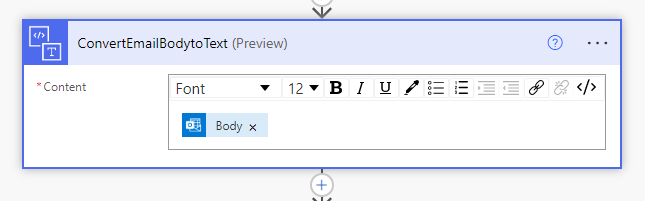
- Rename step to: ConvertEmailBodytoText
- Content: triggerOutputs()?[‘body/body’]
The next step is another ‘Initialize Variable’ step
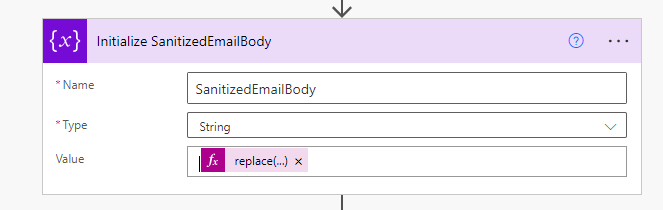
- Rename step to: Initialize SanitizedEmailBody
- Name: SanitizedEmailBody
- Type: String
- Value: replace(replace(replace(replace(body(‘ConvertEmailBodytoText’), ‘\”‘, ‘\\\”‘), ‘\\’, ‘\\\\’), ‘\n’, ‘\\n’), ‘\r’, ‘\\r’)
I kid you not. My apologies for this soup.
Finally, we can make our initial call to SyncroMSP to get the contacts.
Create an ‘HTTP’ step.
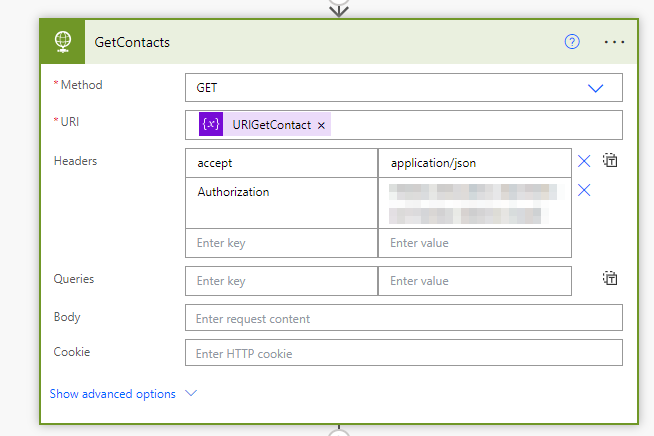
- Method: GET
- URI: your URIGetContact variable
- Headers: accept: application/json, Authorization: your Syncro API key
Now here is where we need to get creative. The Syncro documentation says only 25 contacts are returned with each request, but it’s actually 50. But this still is not likely enough, so to get all the contacts you will probably have to paginate. This essentially means make further requests until you get ’em all. Power Automate’s HTTP step does support pagination, but only tokenised pagination, which this isn’t so this is how we handle it.
There are alternatives – I actually have an Azure Function that twice daily retrieves the contacts from SyncroMSP and adds them to Azure Table Storage, effectively caching the contacts. Power Automate supports Azure Table Storage and filters directly from there – this greatly reduces the complexity of the flow and minimises requests to SyncroMSP, but for the purposes of this blog, this is how you can paginate. This is one of the issues with low-code/no-code tools like Power Automate – in some situations something that can be done with a few lines in PowerShell or Python become overly convoluted.If there’s interest, I can write an article about doing this via an Azure Function.
On the response from the above GET request, at the bottom of the request, there’s some meta details, like the below:
  "meta": {
    "total_pages": 23,
    "total_entries": 1120,
    "per_page": 50,
    "page": 1
  }
And this tells you how many total pages there are. So we will grab this.
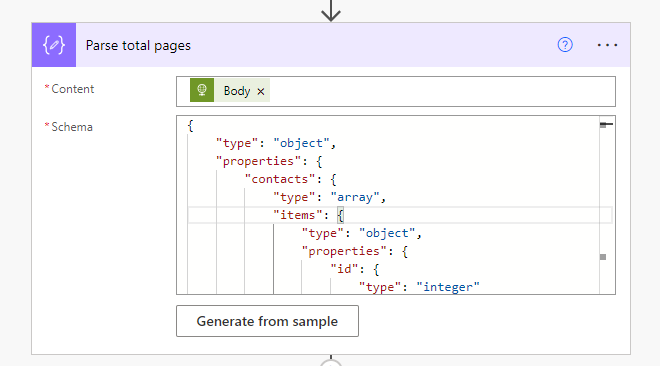
Create a new ‘Parse JSON’ step, rename it to Parse total pages.
Content is: body(‘GetContacts’) (i.e. the body from the GetContacts stage
Schema will be:
{
    "type": "object",
    "properties": {
        "contacts": {
            "type": "array",
            "items": {
                "type": "object",
                "properties": {
                    "id": {
                        "type": "integer"
                    },
                    "name": {
                        "type": "string"
                    },
                    "address1": {},
                    "address2": {},
                    "city": {},
                    "state": {},
                    "zip": {},
                    "email": {
                        "type": "string"
                    },
                    "phone": {},
                    "mobile": {},
                    "latitude": {},
                    "longitude": {},
                    "customer_id": {
                        "type": "integer"
                    },
                    "account_id": {
                        "type": "integer"
                    },
                    "notes": {},
                    "created_at": {
                        "type": "string"
                    },
                    "updated_at": {
                        "type": "string"
                    },
                    "vendor_id": {},
                    "properties": {
                        "type": "object",
                        "properties": {}
                    },
                    "opt_out": {
                        "type": "boolean"
                    },
                    "extension": {},
                    "processed_phone": {},
                    "processed_mobile": {},
                    "ticket_matching_emails": {}
                },
                "required": [
                    "id",
                    "name",
                    "address1",
                    "address2",
                    "city",
                    "state",
                    "zip",
                    "email",
                    "phone",
                    "mobile",
                    "latitude",
                    "longitude",
                    "customer_id",
                    "account_id",
                    "notes",
                    "created_at",
                    "updated_at",
                    "vendor_id",
                    "properties",
                    "opt_out",
                    "extension",
                    "processed_phone",
                    "processed_mobile",
                    "ticket_matching_emails"
                ]
            }
        },
        "meta": {
            "type": "object",
            "properties": {
                "total_pages": {
                    "type": "integer"
                },
                "total_entries": {
                    "type": "integer"
                },
                "per_page": {
                    "type": "integer"
                },
                "page": {
                    "type": "integer"
                }
            }
        }
    }
}
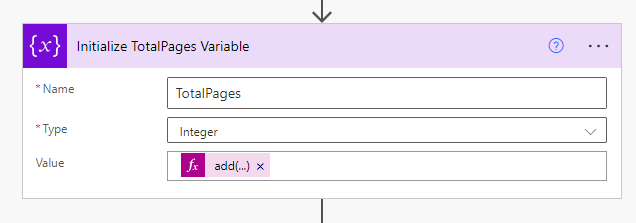
Next we’ll add an ‘Initialize Variable’ step:
- Rename step to: Initialize TotalPages Variable
- Name: TotalPages
- Type: Integer
- Value: add(body(‘Parse_total_pages’)?[‘meta’]?[‘total_pages’], 1)
Now we get to the fun part.
Add a ‘Do Until’ step.
variables(‘Counter’) is equal to variables(‘TotalPages’)
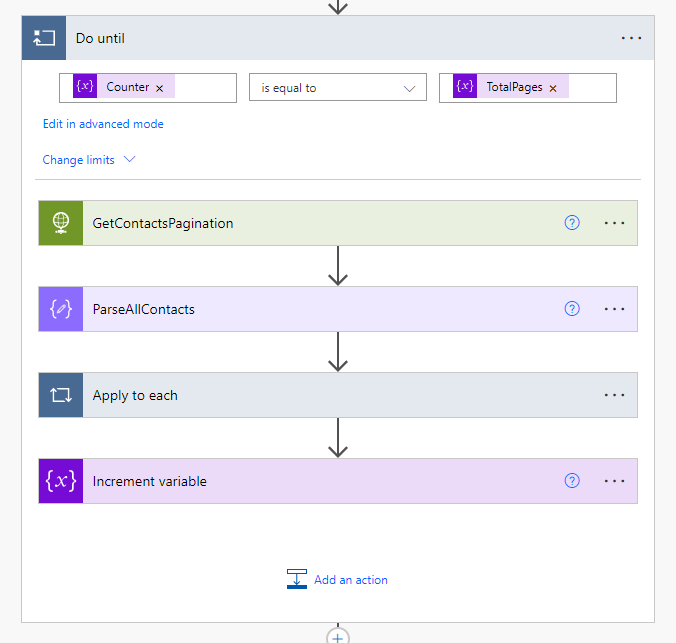
And as you can see, inside this we make another call to SyncroMSP requesting the page we want, parse the JSON, add each of the contacts to our array, increment the counter, and repeat until we get to the last page.
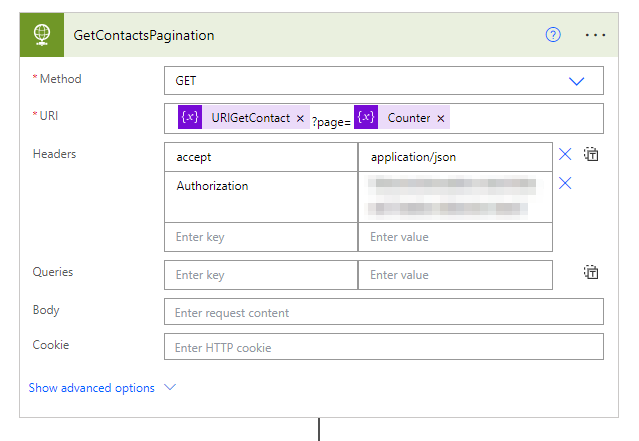
So we next add an ‘HTTP’ step
- Method: GET
- URI: variables(‘URIGetContact’)}?page=@{variables(‘Counter’)
- Headers: accept: application/json, Authorization: your Syncro API key
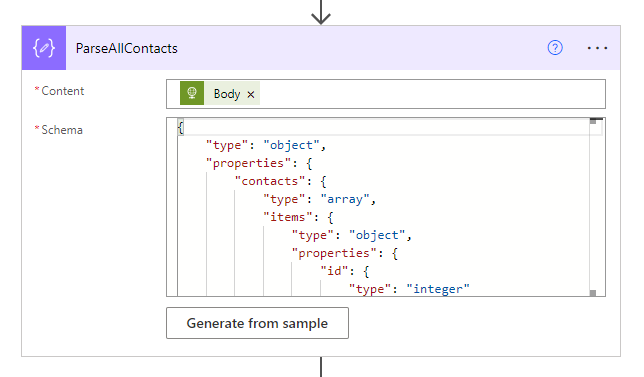
Then add a ‘Parse JSON’ step, rename it to Parse total pages.
Content is: body(‘GetContactsPagination’) (i.e. the body from the GetContactsPagination stage)
Schema will be:
{
    "type": "object",
    "properties": {
        "contacts": {
            "type": "array",
            "items": {
                "type": "object",
                "properties": {
                    "id": {
                        "type": "integer"
                    },
                    "name": {
                        "type": "string"
                    },
                    "address1": {},
                    "address2": {},
                    "city": {},
                    "state": {},
                    "zip": {},
                    "email": {
                        "type": "string"
                    },
                    "phone": {},
                    "mobile": {},
                    "latitude": {},
                    "longitude": {},
                    "customer_id": {
                        "type": "integer"
                    },
                    "account_id": {
                        "type": "integer"
                    },
                    "notes": {},
                    "created_at": {
                        "type": "string"
                    },
                    "updated_at": {
                        "type": "string"
                    },
                    "vendor_id": {},
                    "properties": {
                        "type": "object",
                        "properties": {}
                    },
                    "opt_out": {
                        "type": "boolean"
                    },
                    "extension": {},
                    "processed_phone": {},
                    "processed_mobile": {},
                    "ticket_matching_emails": {}
                },
                "required": [
                    "id",
                    "name",
                    "address1",
                    "address2",
                    "city",
                    "state",
                    "zip",
                    "email",
                    "phone",
                    "mobile",
                    "latitude",
                    "longitude",
                    "customer_id",
                    "account_id",
                    "notes",
                    "created_at",
                    "updated_at",
                    "vendor_id",
                    "properties",
                    "opt_out",
                    "extension",
                    "processed_phone",
                    "processed_mobile",
                    "ticket_matching_emails"
                ]
            }
        },
        "meta": {
            "type": "object",
            "properties": {
                "total_pages": {
                    "type": "integer"
                },
                "total_entries": {
                    "type": "integer"
                },
                "per_page": {
                    "type": "integer"
                },
                "page": {
                    "type": "integer"
                }
            }
        }
    }
}
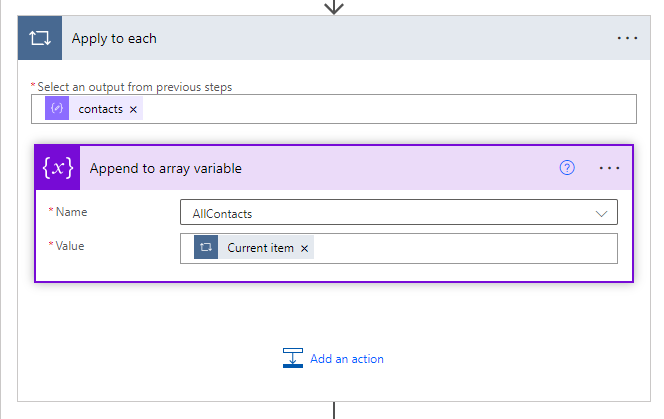
Then add an ‘Apply to Each’ step. For ‘Select an output from previous steps’ enter body(‘ParseAllContacts’)?[‘contacts’]
Inside the ‘Apply to Each’ add a ‘Append to Array’ step. Rename it to ‘Append to array variable’ for ‘Name’ select ‘AllContacts’ and for ‘Value’ select ‘Current item’
Finally, outside the ‘Apply to Each’ but inside the ‘Do Until’ add an ‘Increment Variable’ step. Select ‘Counter’ for ‘Name’ and for ‘Value’ enter 1.
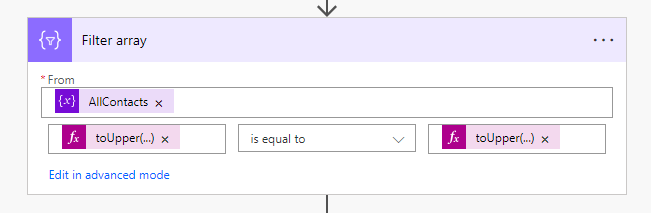
Finally, outside of the ‘Do Until’, add a ‘Filter Array’ step.
- From: variables(‘AllContacts’)
Then add expression toUpper(item()?[’email’]) is equal to toUpper(triggerOutputs()?[‘body/from’])
We use toUpper because ‘Filter Array’ is case sensitive, so by converting them both to uppercase we work around this.
Phew! At this point we’re finished with the steps involving contact collection and the flow should gather all your contacts from SyncroMSP, and filter it down to return the contact from your email. At this point, I woud test the flow to make sure it works.
There are a couple of caveats, of course:
- If the contact doesn’t exist, it won’t return it. You’ll need to create a fancier flow to create a contact.
- If you have multiple contacts with the same email address, this will only use the first one returned – again, you would need to figure out how you want to handle this if you do have this situation.
In the next part, we’ll move on to sending the body text to OpenAI and receiving the response.
Leave a Reply